With the release of Oracle APEX 26.1, our development team at Ontoor Solution was eager to explore the new features and understand how they could impact real-world application development. Rather than simply reviewing the release notes, we conducted a hands-on first-look evaluation, testing selected features, exploring the development experience, and discussing potential use cases across the types of applications we build for our customers.

Sohan Dutta:
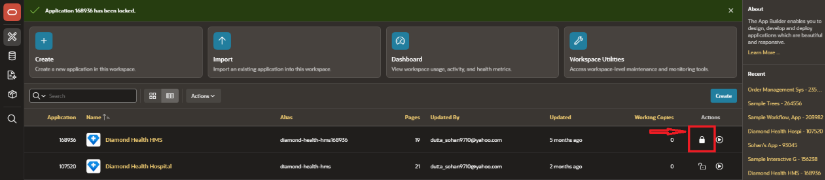
Application Lock Feature in Oracle APEX 26.1
Oracle APEX 26.1 introduces A Simple Way to Control Access and Protect Apps. Application Locking plays an important role in controlling application availability during development, maintenance, and production updates.
When an application is locked:
- Users cannot access it normally
- A custom or default lock page is shown
- Developers/admins can still unlock it anytime
Application Lock simplifies all of this into a single built-in control.
What’s New in Workflow Management in Oracle APEX 26.1
Oracle has officially released Oracle APEX 26.1, bringing several major improvements to Workflow and Human Task management. These updates focus on enterprise automation, scalability, AI integration, and better workflow administration.
APEX 26.1 introduces features that can significantly improve both performance and user experience.
Parallel Workflow
One of the biggest enhancements in APEX 26.1 is support for Parallel Flows.
Previously, workflow activities were mostly executed sequentially. Now, multiple activities can run simultaneously and merge later after completion.
Example :-
Imagine a Laptop Request Approval process where :
- Finance approval
- Manager approval
Earlier, these approvals had to happen one after another. With parallel workflows, all approvals can run at the same time, reducing processing delays and improving efficiency.
This feature is especially useful for :
- Enterprise approval systems
- Procurement workflows
- Document management systems
- Multi-level approval applications
How to Use Parallel Flow in Workflow :-
Step 1: Create or Copy a Workflow
Start by creating a new workflow or copying an existing one from another application.
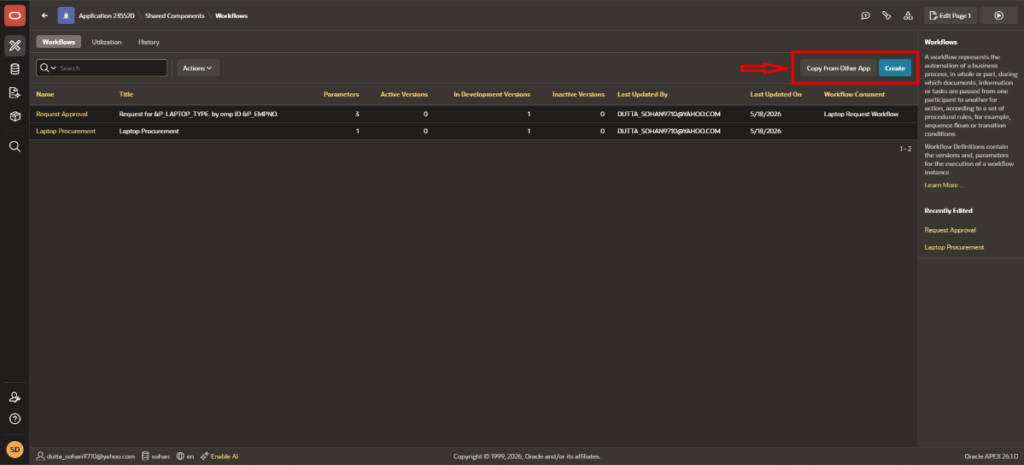
Step 2: Add an Activity
Create an activity and set the Type to Execute Code.
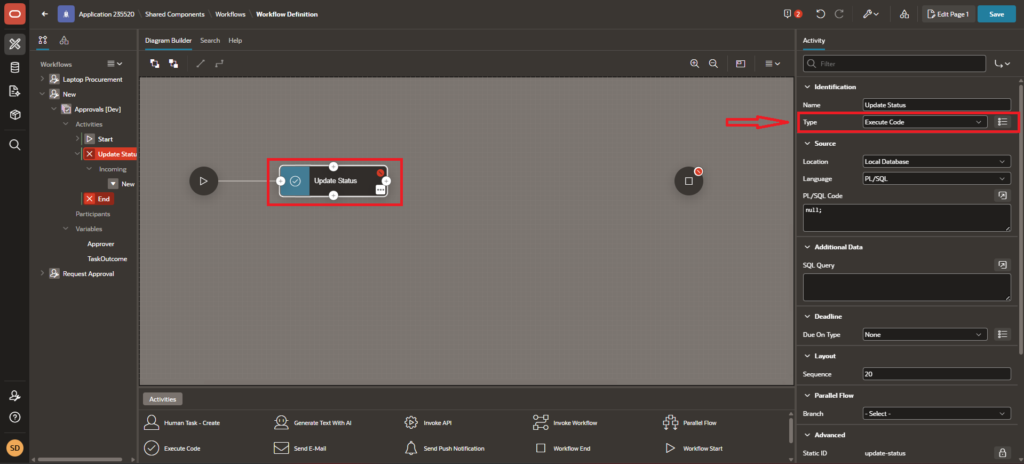
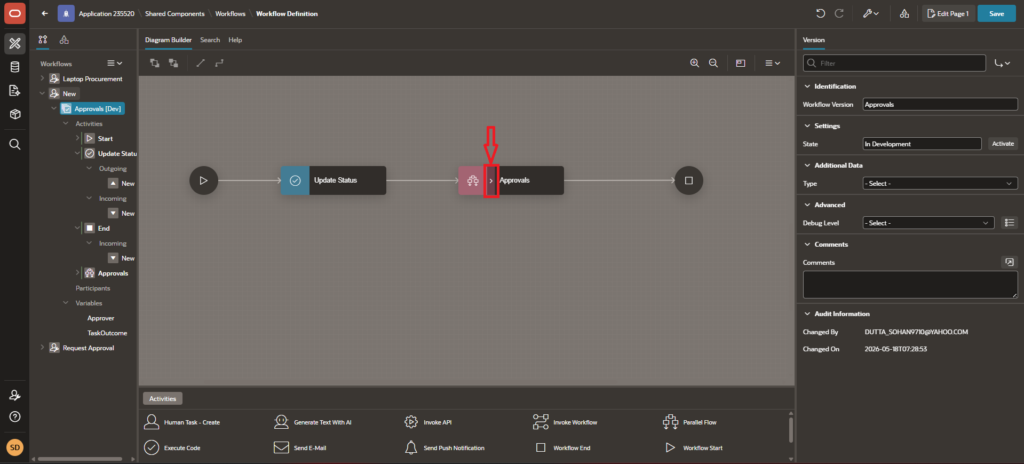
Step 3: Add Parallel Flow
Click on the “+” icon and select Parallel Flow from the options.
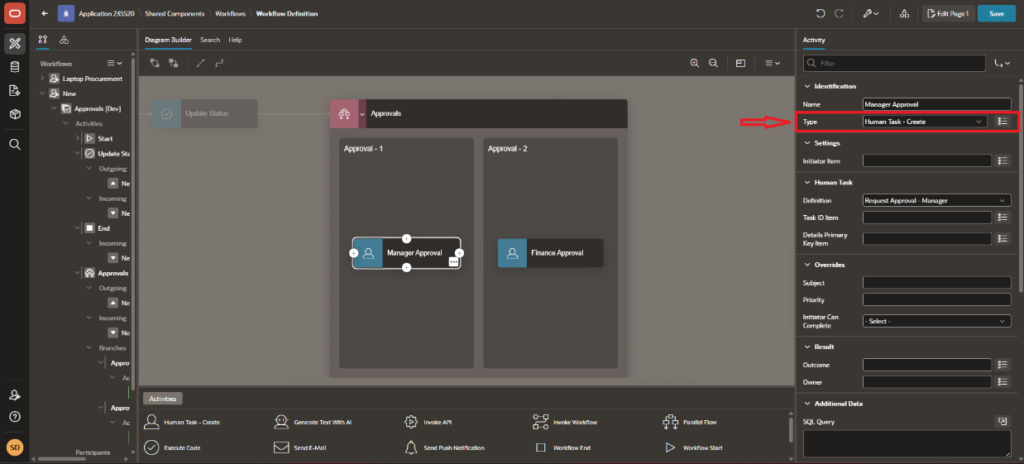
Step 4: Open the Parallel Flow
Once added, open the Parallel Flow to view its structure.
You will see two activities inside it by default.
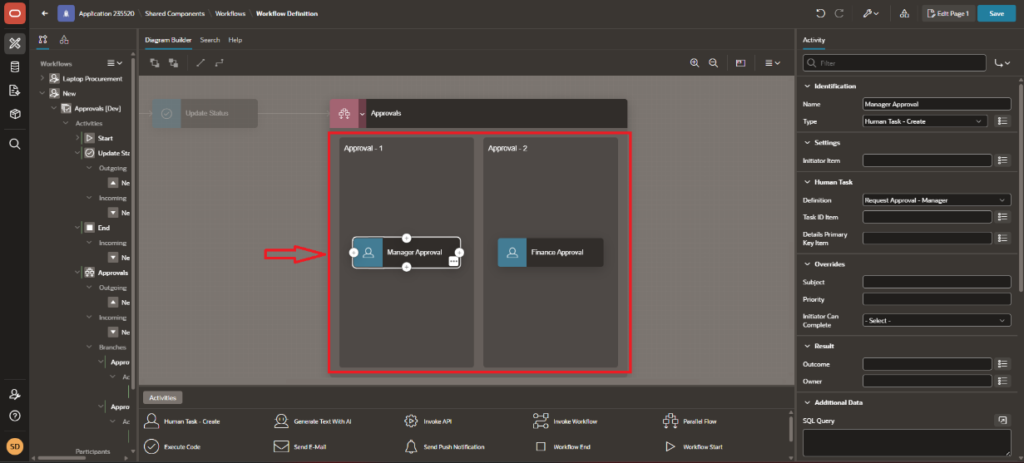
Step 5: Add Human Tasks
Inside the Parallel Flow, you can add two Human Task activities.These tasks run together, so both execute at the same time inside the workflow.
What’s New in Dynamic Actions in Oracle APEX 26.1
Oracle APEX 26.1 introduces several improvements in Dynamic Actions, making them more integrated, smarter, and easier to use with less dependency on JavaScript.
Dynamic Actions
In earlier versions of APEX, Dynamic Actions often required combining multiple steps with custom JavaScript to achieve common UI behaviour.
With APEX 26.1, the focus is clearly on reducing custom code. Many UI behaviours that previously required scripting can now be configured directly through declarative actions.
This makes applications:
- Easier to maintain
- Less dependent on JavaScript
- More consistent across pages
Notification Actions
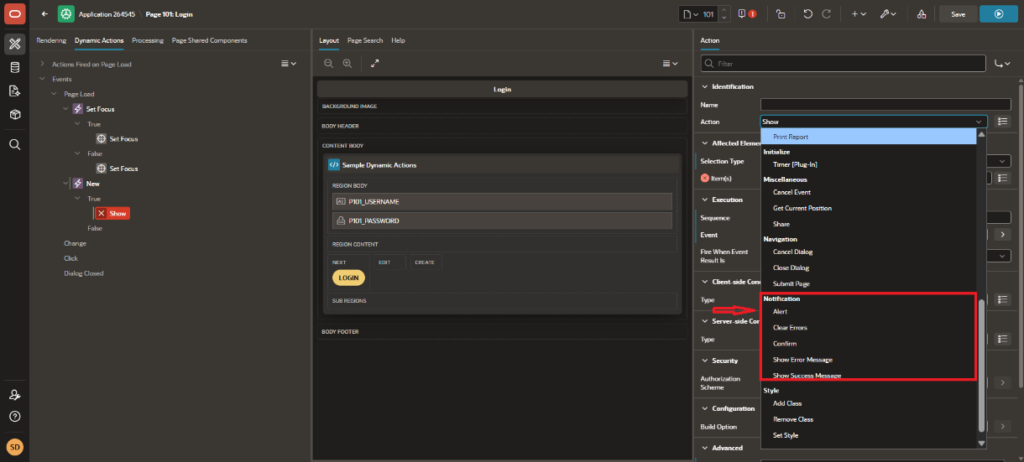
In APEX 26.1, After creating a dynamic action under True event, you can see New built-in Notification Actions.
These allow you to directly show feedback to users without writing any JavaScript.
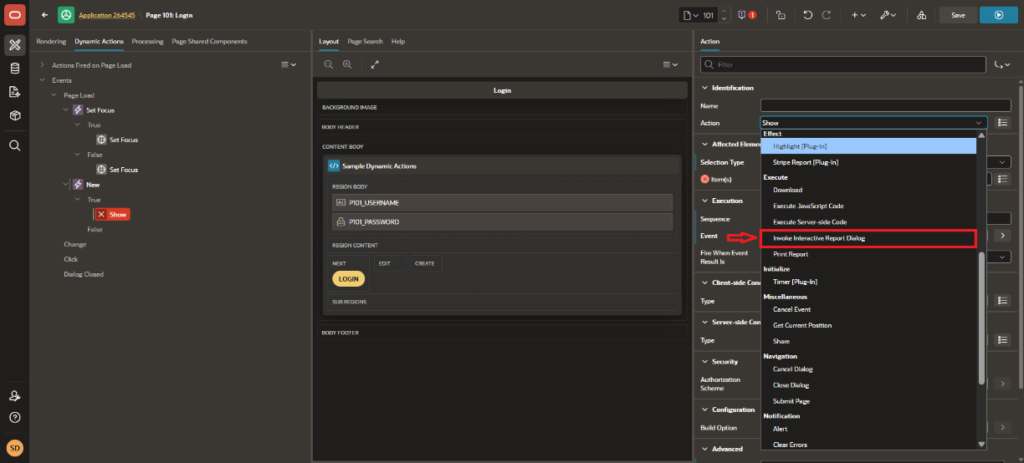
Invoke Interactive Report Action
With this, you can now :
- Refresh or interact with Interactive Reports directly from a Dynamic Action
- Update report data dynamically without page reload
- Improve user experience in reporting pages
Vibhor Srivastava
Oracle APEX 26.1 – Why I Used Sample Data in Interactive Report
Today I explored one of the most useful features in Oracle APEX — creating an Interactive Report with Modal Dialog Form using Sample Data.
This feature is very helpful for beginners and developers because Oracle APEX automatically provides demo tables and records for testing applications quickly.
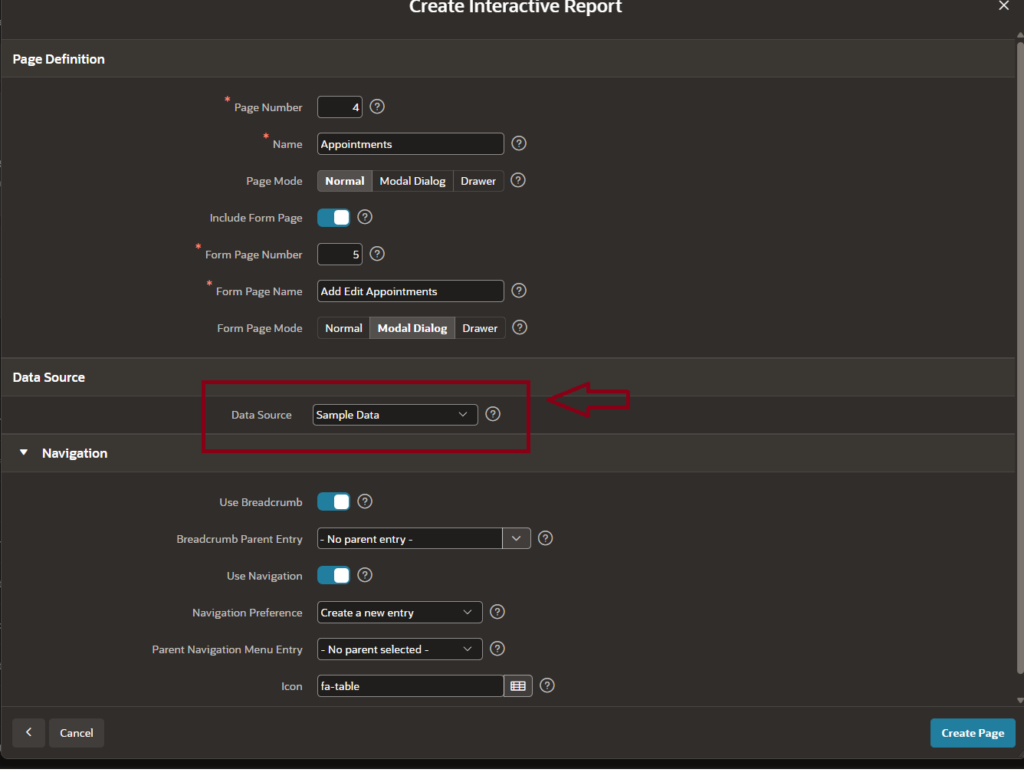
Step 1 – Create Interactive Report Page
In Oracle APEX:
- Clicked on Create Page
- Selected Interactive Report
- Enabled Include Form Page
- Selected Modal Dialog option
- Added page name as Appointments
- This automatically creates:
- Interactive Report
- Create/Edit Form
- CRUD Functionality
- Modal Popup Form
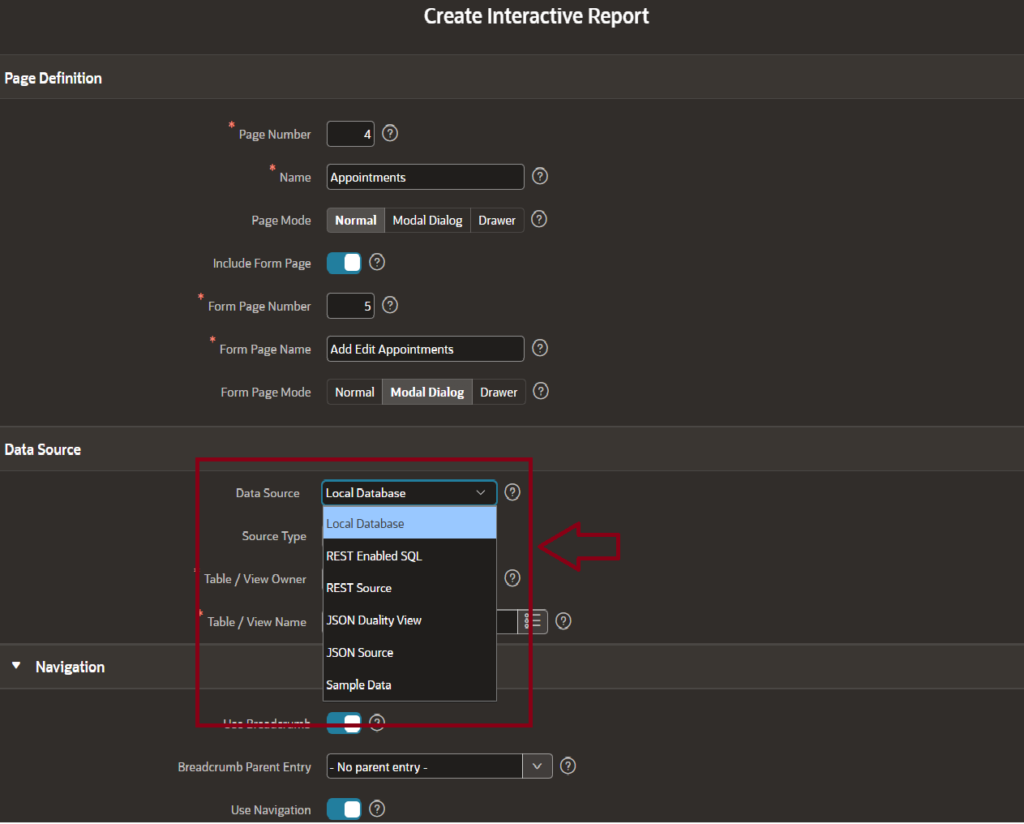
Step 2 – Select Sample Data as Data Source
Instead of manually creating tables, I selected:
Data Source → Sample Data
Oracle APEX automatically loaded demo tables for testing purposes.
Why Sample Data is Useful
- Faster development
- Easy learning for beginners
- Quick CRUD testing
- No manual SQL table creation
- Perfect for UI prototyping
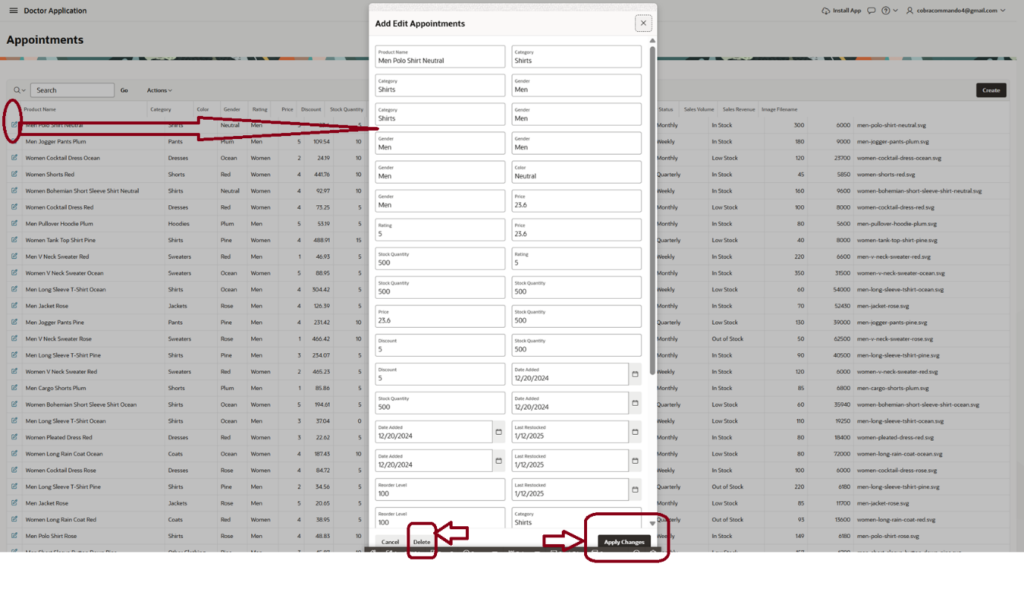
Step 3 – Interactive Report Generated Automatically
After clicking Create Page, Oracle APEX automatically generated:
- Search Bar
- Actions Menu
- Interactive Filters
- Create Button
- Editable Modal Form
- Responsive Report Layout
The form popup allows users to:
Add Records
Edit Records
Manage Data Easily
Step 4 – Page Designer View
After page creation, Oracle APEX automatically configured:
- Report Region
- Columns
- Buttons
- Layout
- Sample Data Source
- Interactive Report Settings
This saves a lot of development time in low-code application building.
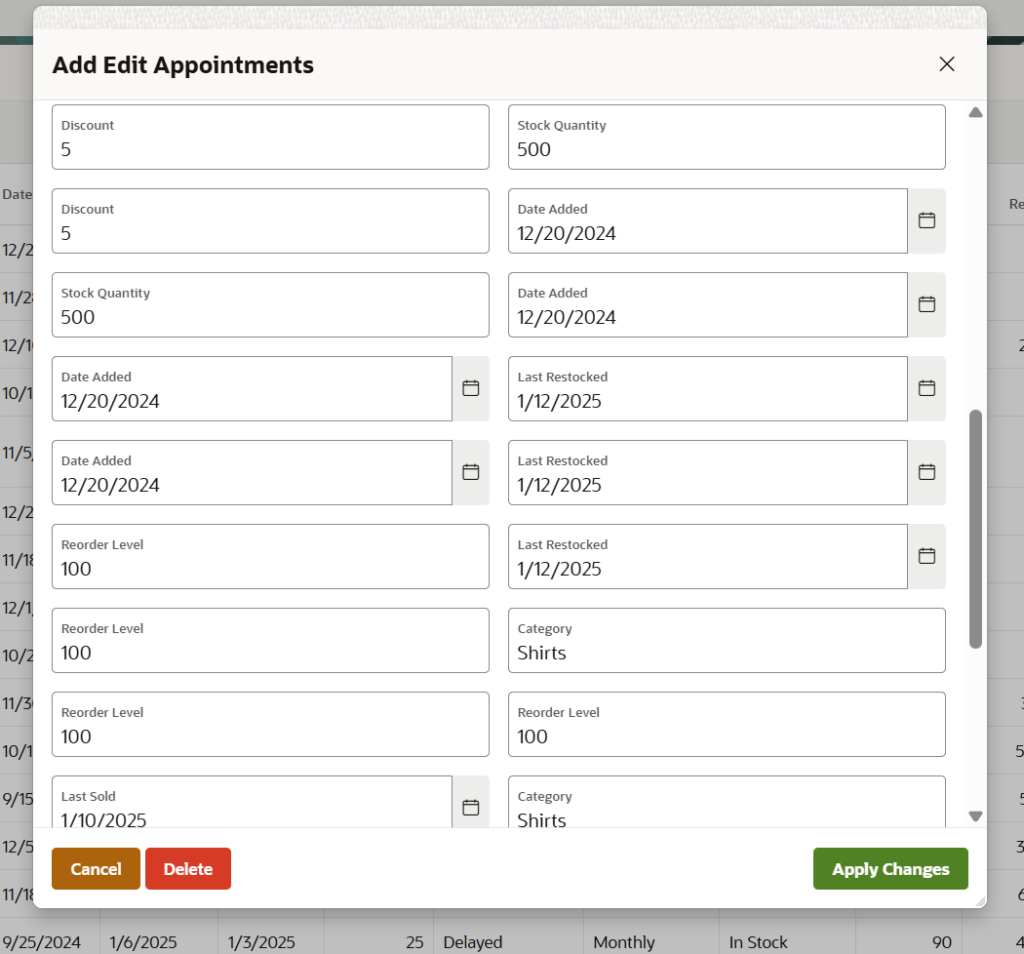
Final Result
Successfully created a modern Interactive Report with Drawer Page in Oracle APEX 26.1 with CRUD operations, responsive UI, validations, and authentication support.
Oracle APEX 26.1 APEXLang – Export Oracle APEX Applications into VS Code
Today I explored an amazing feature in Oracle APEX called APEXLang.
Using APEXLang, developers can export Oracle APEX applications into a structured code format and open them directly inside VS Code for better version control, editing, and project management.
This is a powerful feature for professional Oracle APEX developers and teams.
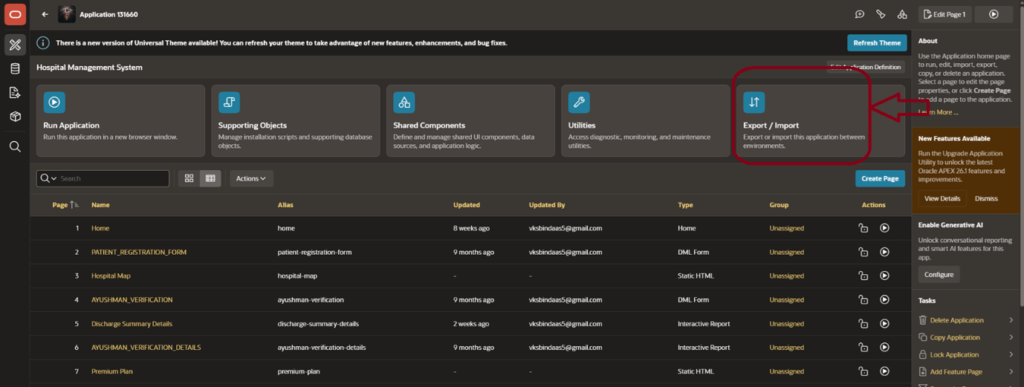
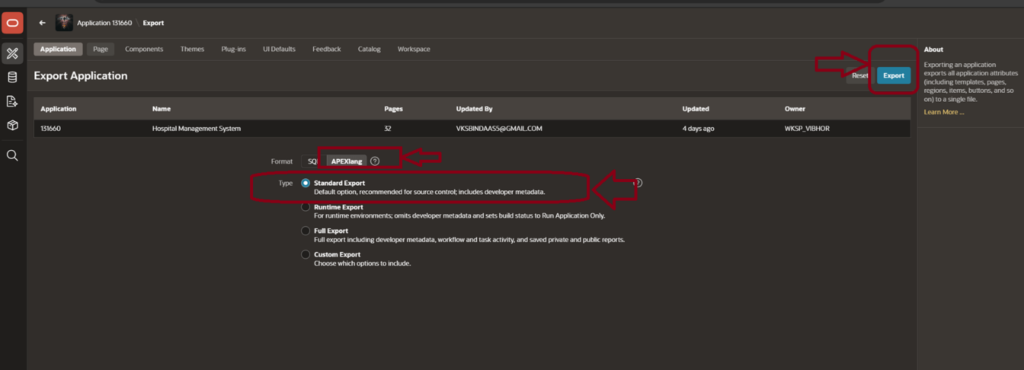
Step 1 – Open Export Application Page
Inside Oracle APEX:
- Open your application
- Click on Export / Import
- Go to Export Application
Here Oracle APEX provides multiple export formats.
Selected Format:
APEXLang
This format exports the application in structured code files.
Step 2 – Choose Standard Export
After selecting APEXLang:
- Selected Standard Export
- Clicked on Export
Oracle APEX generated the application files automatically.
Benefits of Standard Export
Includes Developer Metadata
Better Source Control
Team Collaboration
Easy Backup & Migration
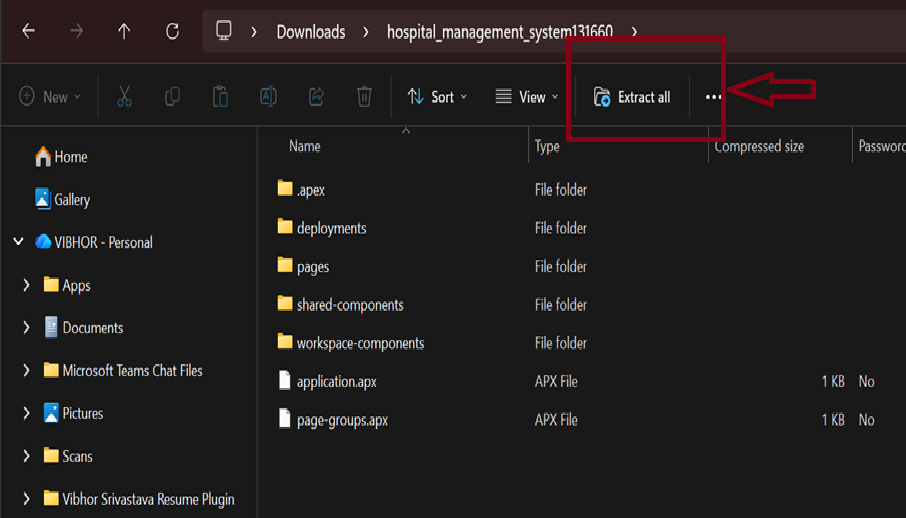
Step 3 – Extract Exported Files
After downloading the exported ZIP file:
- Opened Downloads Folder
- Clicked on Extract All
The extracted folder contained:
- Pages
- Shared Components
- Deployments
- Static Files
- Application Metadata
This creates a structured development environment.
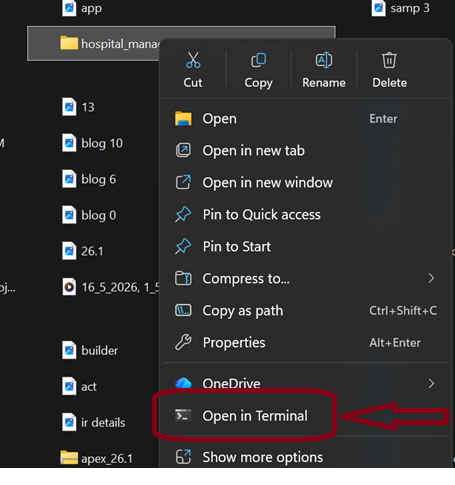
Step 4 – Open Project in VS Code
Next step:
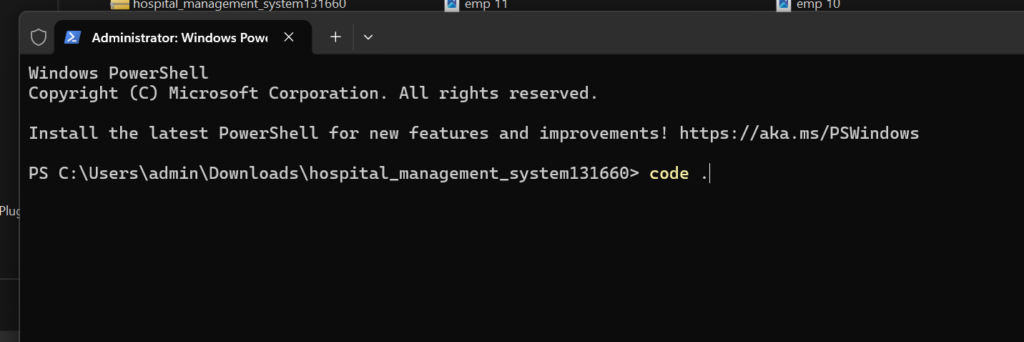
- Opened PowerShell / Terminal
- Ran the command: code .
This opened the complete Oracle APEX project directly inside VS Code.
A very useful workflow for developers.
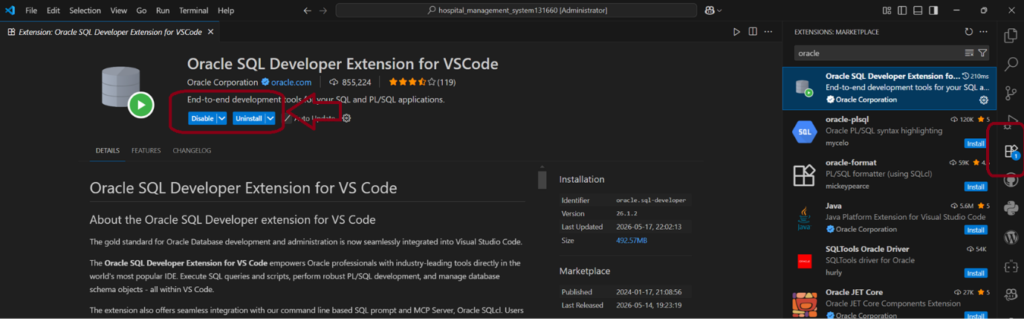
Step 5 – Install Oracle SQL Developer Extension
Inside VS Code:
- Opened Extensions Marketplace
- Installed:
Oracle SQL Developer Extension for VS Code
This extension helps developers:
- Manage Oracle Database
- Work with SQL & PL/SQL
- Improve development workflow
- Integrate Oracle tools inside VS Code
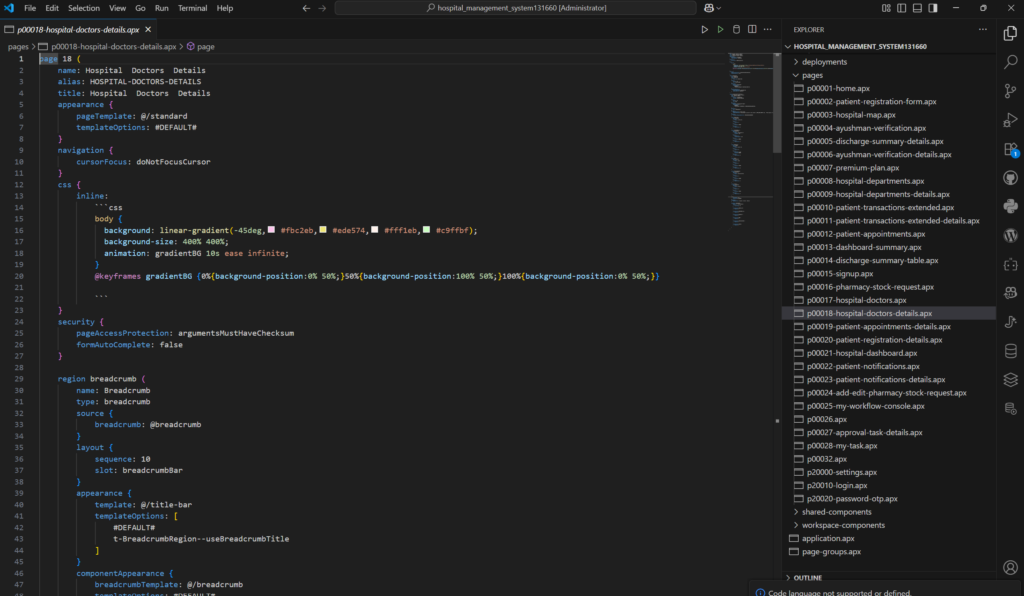
Step 6 – View Oracle APEX Pages as Code
After opening the project:
- All application pages appeared as structured .apx files
- Developers can now:
- Edit page code
- Manage components
- Track changes
- Use Git version control
This gives Oracle APEX a more professional development experience.
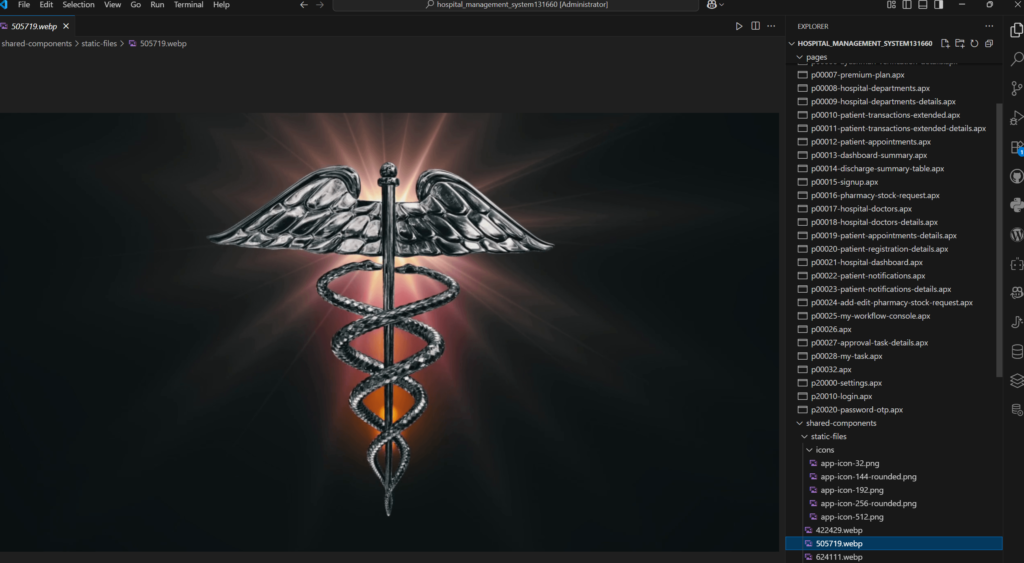
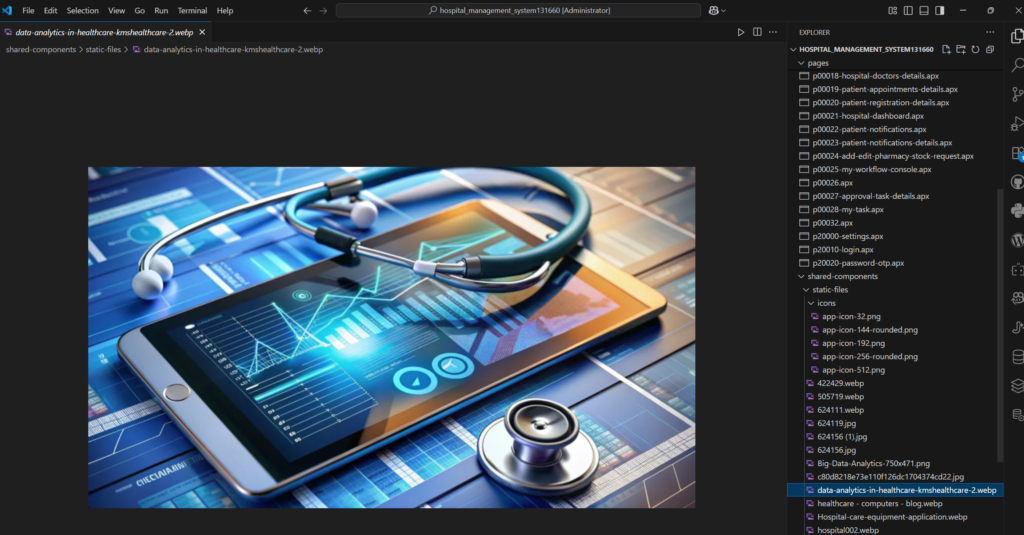
Step 7 – Access Static Files & Assets
Inside the exported project:
- Static Files
- Images
- Icons
- Application Assets
were also available directly in VS Code.
This makes UI customization much easier.
Manage Images
Edit Assets
Organize Project Files
Improve Frontend Workflow
Why APEXLang is Powerful
APEXLang helps developers:
- Export Applications as Code
- Use VS Code for Development
- Manage Source Control Easily
- Improve Team Collaboration
- Track Application Changes
- Create Professional Workflows
Perfect for:
- Enterprise Development
- Team Collaboration
- Git Integration
- CI/CD Workflows
- Professional Oracle APEX Projects
Now developers can:
- Export complete applications into structured code
- Open projects in VS Code
- Manage applications professionally
- Combine low-code + pro-code workflows
A very powerful feature for modern Oracle APEX development.
Oracle APEX 26.1 – AI Interactive Report with Natural Language Search
Today I explored one of the most exciting AI-powered features in Oracle APEX — AI Interactive Report with Natural Language Support.
This feature allows users to search and filter Interactive Reports using simple human language instead of manually applying filters.
Oracle APEX 26.1 is making data analysis smarter and more user friendly.
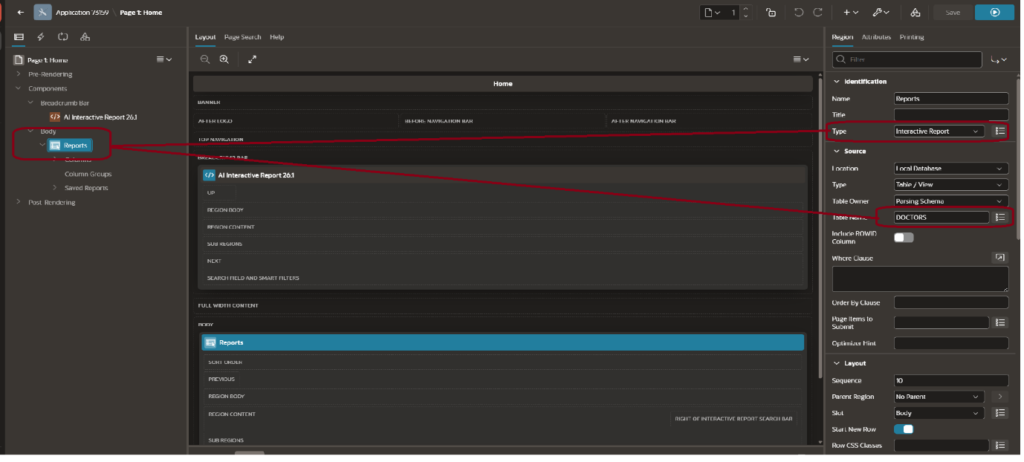
Step 1 – Create Interactive Report
Inside Oracle APEX Page Designer:
- Added a new Interactive Report
- Selected:
- Type → Interactive Report
- Table → DOCTORS
This automatically generated a report connected with the DOCTORS table.
Features Generated Automatically
- Search Bar
- Actions Menu
- Interactive Filters
- AI Support Integration
Step 2 – Enable Generative AI Support
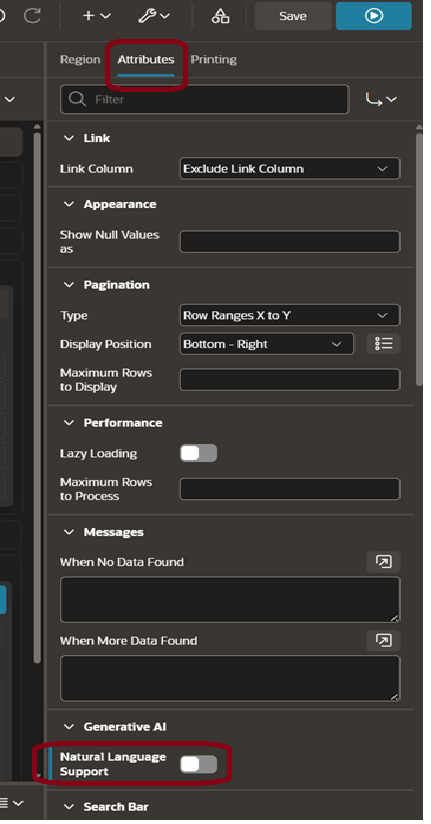
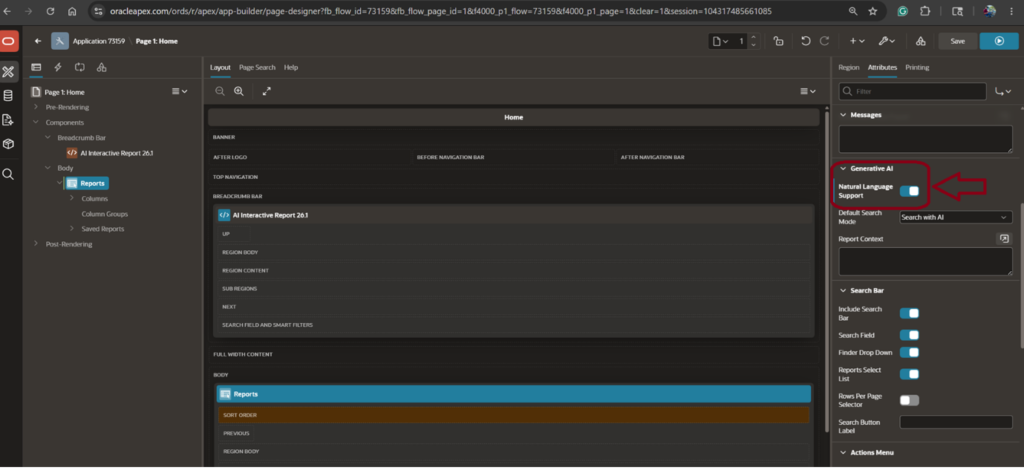
After creating the Interactive Report:
- Opened the Attributes Panel
- Enabled:
Natural Language Support - Selected:
Default Search Mode → Search with AI
This activates the AI assistant inside the report.
What This Feature Does
Users can now:
- Ask questions in natural language
- Apply filters automatically
- Search records using plain English
- Analyze data faster
Step 3 – Run AI Interactive Report
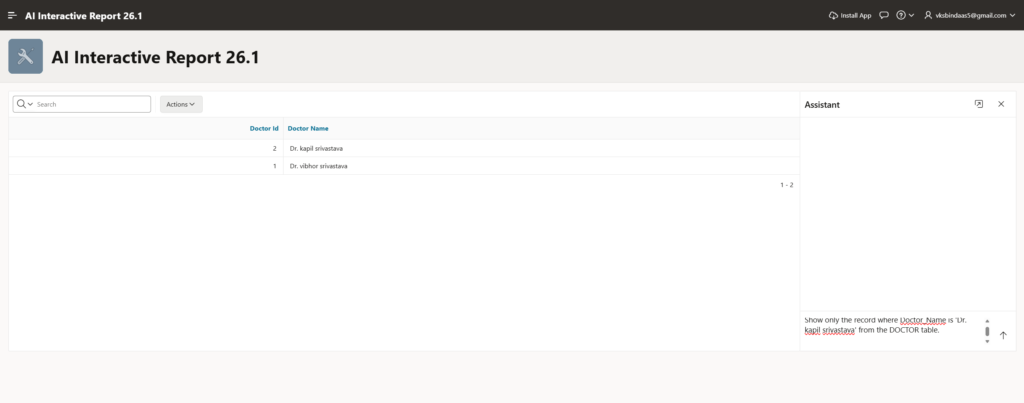
After enabling AI support:
- Ran the application
- Interactive Report opened with an AI Assistant Panel
The report displayed:
Search with AI
Interactive Filters
AI Chat Panel
Smart Data Queries
This creates a modern AI-powered reporting experience.
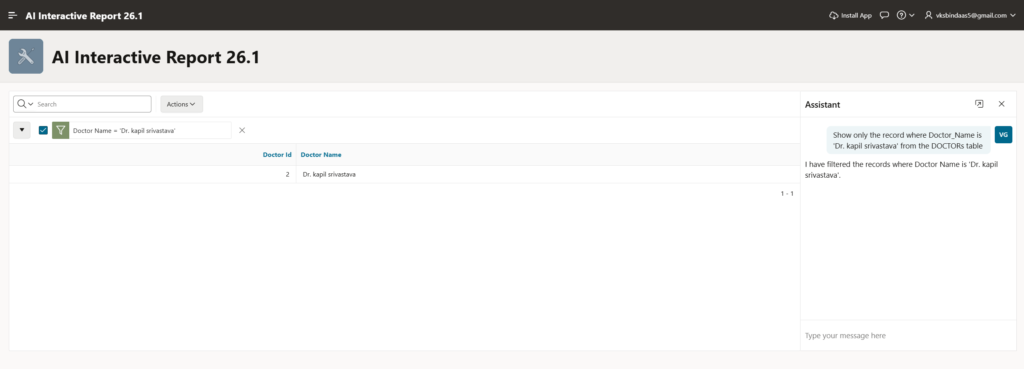
Step 4 – Search Data Using Natural Language
I entered a natural language prompt:
“Show only the record where Doctor_Name is Dr. kapil srivastava”
The AI assistant automatically:
Understood the request
Applied filters
Displayed matching records
No manual filter creation was required.
This is one of the most powerful AI features in Oracle APEX 26.1.
Step 5 – Reset Report Using AI
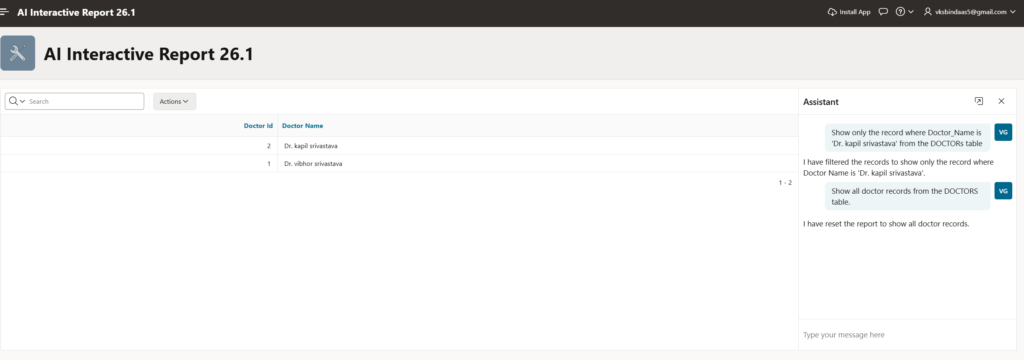
Next, I asked:
“Show all doctor records from the DOCTORS table”
The AI assistant automatically:
Removed filters
Reset the report
Displayed all records again
This creates a much faster and smarter reporting workflow.
Why AI Interactive Reports in Oracle APEX 26.1 are Powerful
This feature helps developers and users:
- Search Data Using Natural Language
- Reduce Manual Filtering
- Improve User Experience
- Analyze Reports Faster
- Create Smarter Applications
- Build Modern AI-Powered Dashboards
Perfect for:
- Enterprise Applications
- Reporting Systems
- Admin Dashboards
- Business Analytics
- Healthcare Applications
Oracle APEX 26.1 – Using APEX Assistant in SQL Commands
One of the most impressive features I explored in Oracle APEX is the new APEX Assistant inside SQL Commands.
This AI-powered assistant helps developers quickly generate SQL queries, create tables, and improve productivity directly inside Oracle APEX.
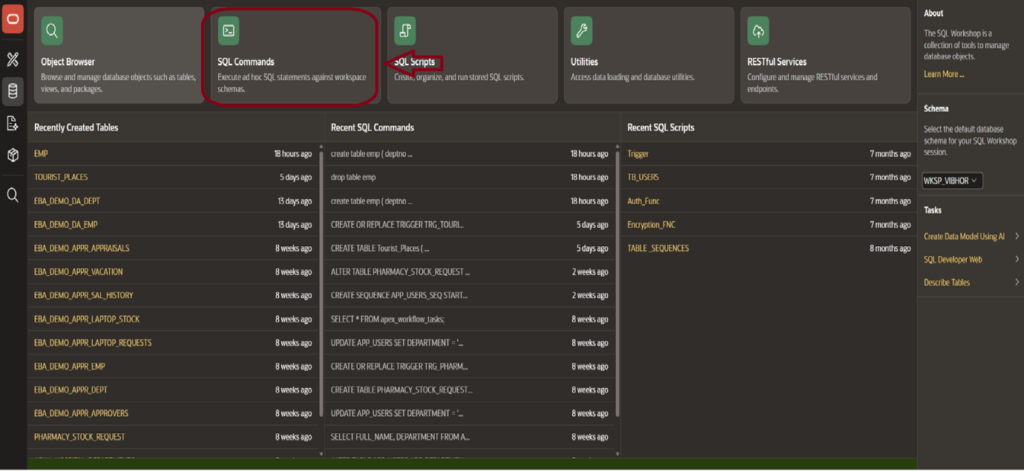
Step 1 – Open SQL Commands
Inside Oracle APEX:
- Go to SQL Workshop
- Open SQL Commands
- Click on the new APEX Assistant button
This feature allows developers to generate SQL queries using simple text prompts.
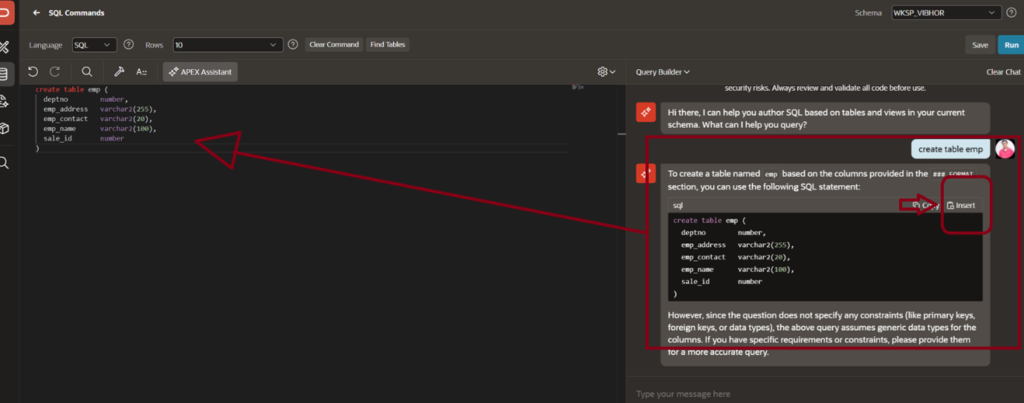
Step 2 – Ask APEX Assistant to Generate SQL
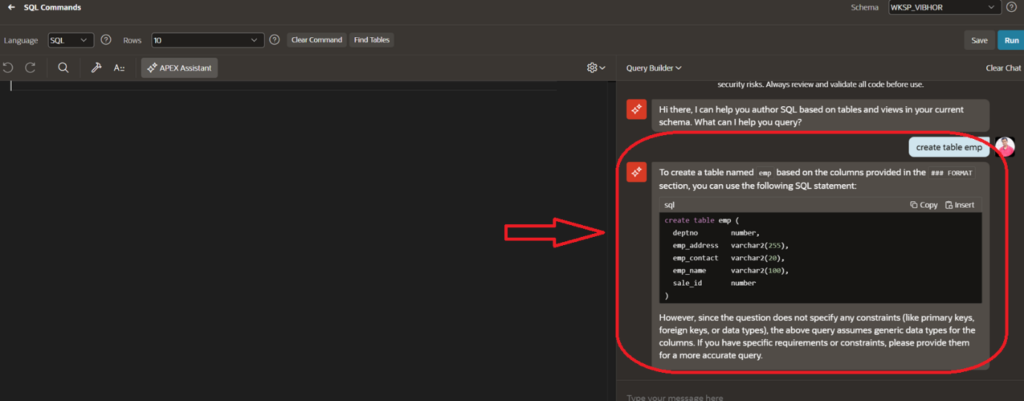
I asked APEX Assistant to:
“Create a table based on sales and views.”
The assistant automatically generated the SQL query for table creation.
Generated features included:
Table Structure
Columns
Datatypes
SQL Syntax
This makes development much faster for beginners and developers.
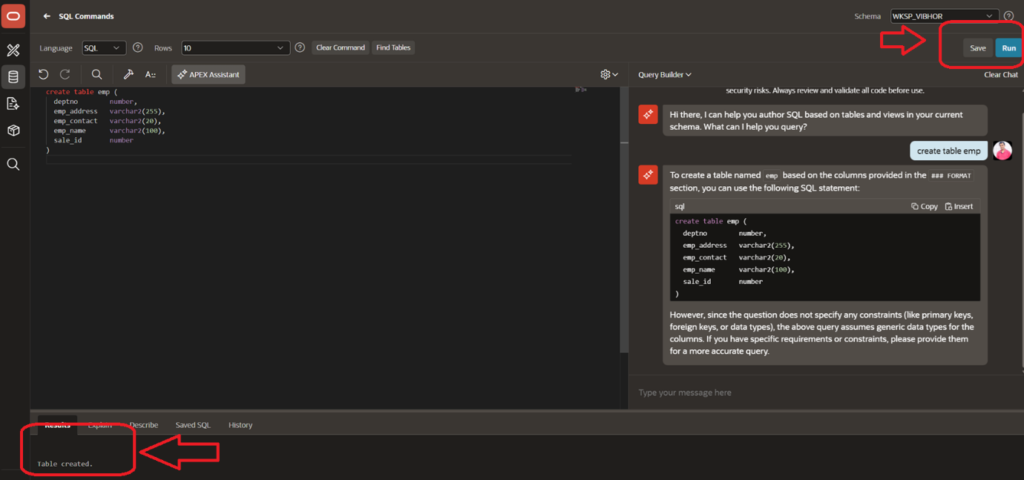
Step 3 – Execute and Save SQL Query
After reviewing the generated SQL:
- Clicked on Run
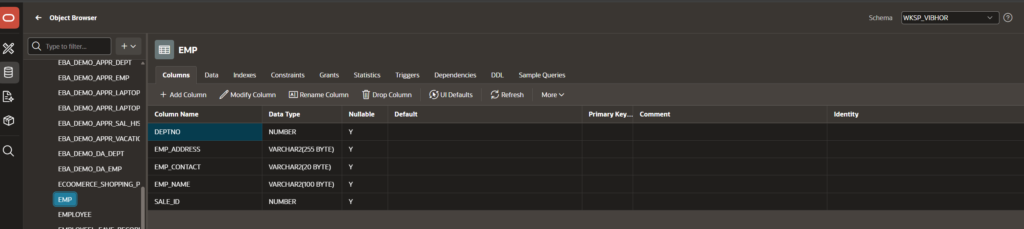
- Oracle APEX executed the query successfully
- Table was created instantly
This helps developers:
Save Time
Reduce Manual Coding
Learn SQL Faster
Improve Productivity
Why APEX Assistant is Powerful
The new APEX Assistant in Oracle APEX 26.1 helps with:
- SQL Query Generation
- Table Creation
- Query Suggestions
- Faster Development
- Beginner-Friendly Learning
- AI-Assisted Database Design
It acts like an AI helper directly inside Oracle APEX.
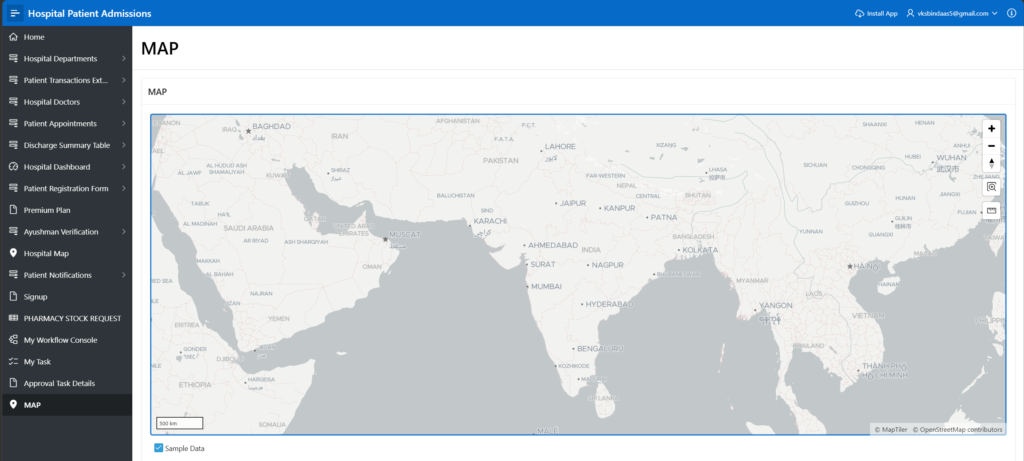
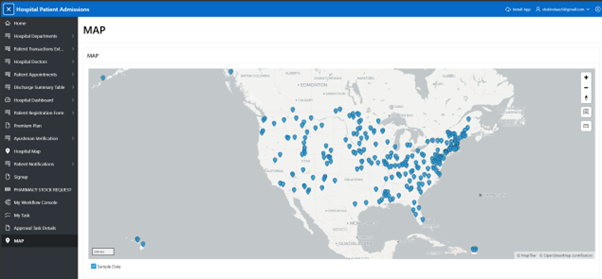
Oracle APEX 26.1 Introduces New “Sample Data” Feature in Map Component
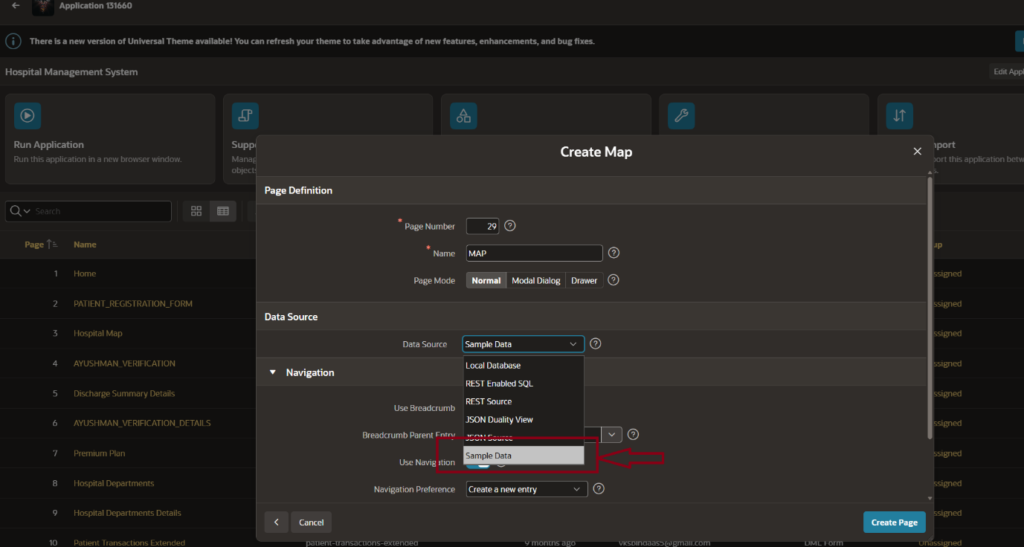
Oracle APEX 26.1 makes page creation faster and easier with the new Sample Data option inside the Map component.
Now developers can instantly create and preview interactive maps without setting up tables or writing SQL queries manually. Just select Sample Data, and APEX automatically generates demo location data with map markers.
What Makes This Feature Useful?
- Quick map page creation
- No database setup required initially
- Instant preview with ready-made map markers
- Perfect for learning and testing Map regions
- Faster prototyping for developers
- Beginner-friendly experience in APEX 26.1
Why It Feels Better
Earlier, developers had to:
- Create tables
- Insert latitude & longitude data
- Configure SQL manually
But now in APEX 26.1:
- Simply choose Sample Data
- Click Create Page
- Your interactive map is ready instantly
This update makes Oracle APEX development more modern, beginner-friendly, and productivity-focused.